Running All Unit Tests When Saving a File in Eclipse
Posted by Chris Sterling on 13 Nov 2007 at 08:58 am | Tagged as: Agile, Architecture, Java, TDD, XP
Introduction
I am a strong proponent of Test-Driven Development (TDD) which has the mantra “write test, write code, refactor”. One of the most important parts of TDD is the ability to gain immediate feedback regarding the state of the code. After using TDD in many projects I have found that there are some potential areas for optimization:
- Decreasing the feedback loop even further
- Automating the feedback beyond the Continuous Integration server
- Attention to the “Psychology of Build Times” (thanks to Jeff Nielsen for this presentation)
I have found that running all unit tests when saving a file in Eclipse has increased our team effectiveness with TDD and decreased our manual integration woes over time. Even though TDD can help tremendously in minimizing technical debt, manual portions of the TDD process can be prone to errors which lead to longer feedback cycles. Thus decreasing the team’s velocity per iteration.
Prerequisites
Before getting started we must identify the parts that will be used in setting up the environment:
- Eclipse 3.2.0+ (download)
- Maven 2 Integration for Eclipse plugin (download)
- and Maven 2 project with POM
After you have these installed please move onto the next step.
Setup Maven 2 Integration for Eclipse
There is a great flash tutorial for setting up the plugin here and another tutorial on how to use its features here.
Once you have installed and reviewed the tutorial of features you can start importing your own Maven 2 project. In the root directory of your Maven 2 project type:
mvn eclipse:eclipse
This will generate the Eclipse project files so that this project can be imported into Eclipse. Once this command has ran successfully go to Eclipse and choose “File->Import…” from the main menu. This will open up a dialog which looks like the following:
Choose “General->Existing Projects into Workspace” from the tree component and click “Next >”. Browse to your project root directory and click “Finish”. After you clicked “Finish” the project will be imported into Eclipse, perform a full build of the project, and then it is ready to be worked on. If you get a problem such as “M2_REPO not defined”, or something similar, make sure that you have set your M2_REPO classpath variable in “Windows->Preferences…Java->Build Path->Classpath Variables” to the path of your Maven 2 local repository which is usually “${USER_HOME_DIR}/.m2/repository”.
Once you have the project successfully imported and building, you may add the Maven 2 project nature by right-clicking your project and selecting “Maven 2->Enable”. This will allow for easier browsing of the Maven 2 repository and adding of dependencies into your project POM.
Running Unit Tests on Every Save
We should have a successfully building project in Eclipse along with a Maven 2 External Tool builder that runs successfully, or at least as well as the command line `mvn test` for your project runs. It is time to add your builder into the “Builders” list for your project. Right-click on your project and choose “Properties”. Choose “Builders” from the left-hand pane. The project properties should look something like this now:
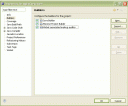
Click “New…” and select “m2 build” as the external tool type to create. This will create a new configuration for a Maven 2 enabled runner to be filled in with the appropriate information. In the “Name:” field type “Project Unit Tests”. In “Base directory” click “Browse workspace” and select your project’s root. In the “Goals” field type “test” which will do all of the steps up to and including running all unit tests for your project (same as running `mvn test` from the command line). Under the “Common” tab our teams usually make the external tool builder a shared file in the project root and check “Display in Favorites menu”, as well. The configuration should look something like the following:
After you have completed all of that click “Apply” and then test it by clicking “Run”. Please review the steps above if you find any errors.
The Wrap Up
TDD can be effective way to reduce technical debt in your code and provide increased delivery capability for your product delivery team. An important piece of TDD is the more immediate feedback to a team member regarding broken components and functionality. Providing a mechanism in your Java project with Eclipse to automate and decrease the duration for feedback can make a team even more effective than using TDD alone. This article focused on the use Maven 2 for building your project and for integration with Eclipse. A similar approach could be taken for creating external tool builders for Ant or Eclipse-based unit test targets.
Please let me know if you are using these tips and how it is working out for you along with any additional information you would like to provide. Good luck.





[…] sourced here […]